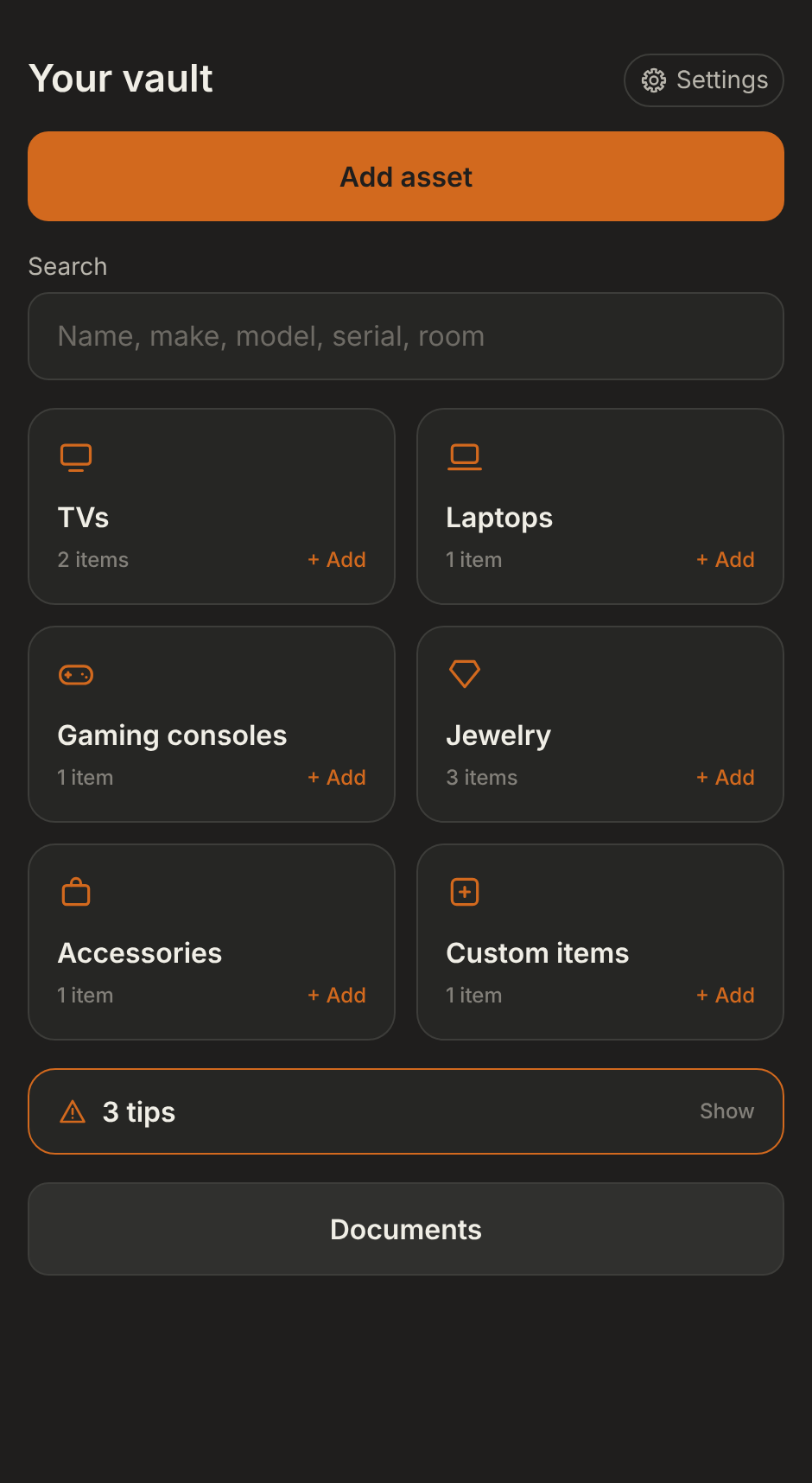
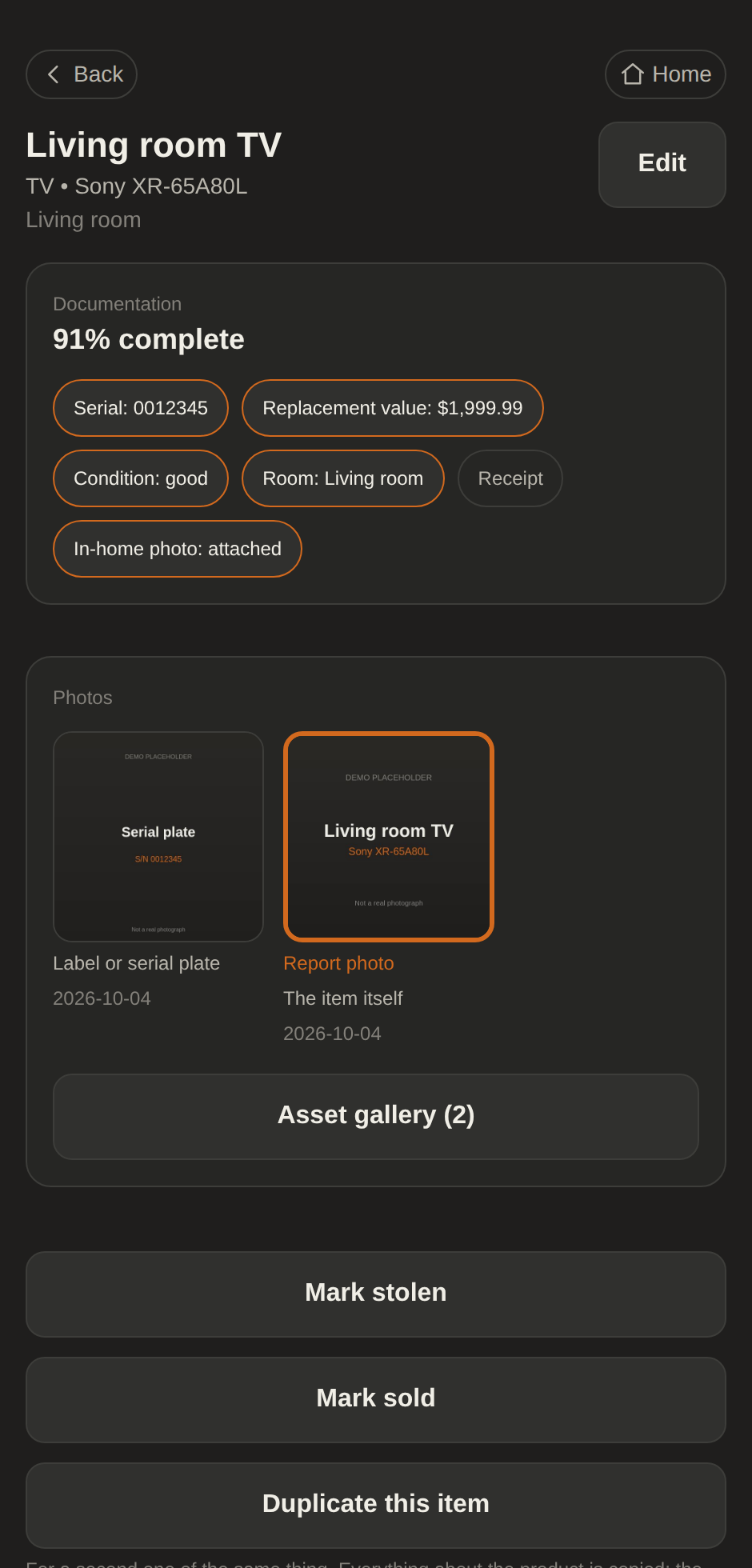
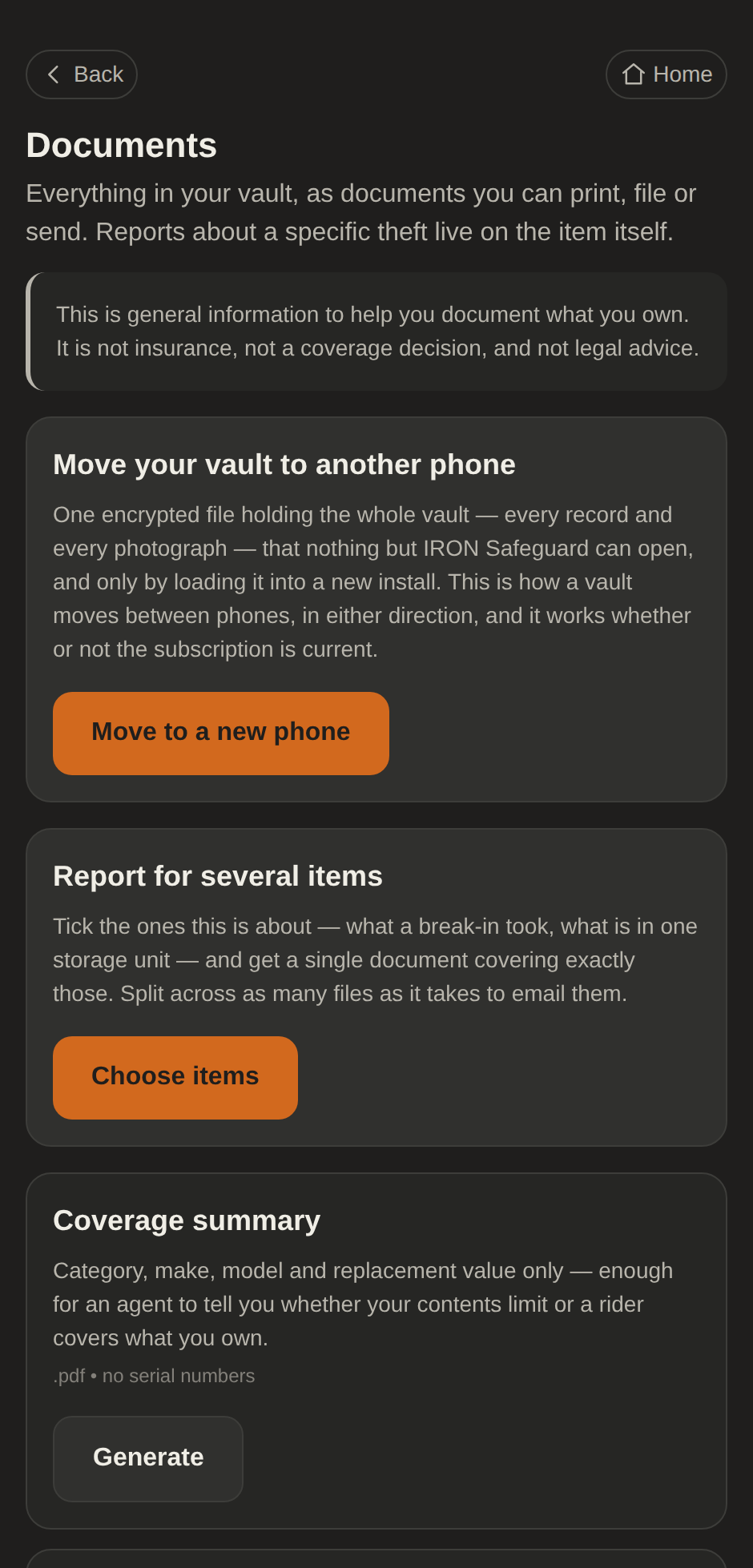
IRON Safeguard keeps a record of what you own in an encrypted vault on your own phone. This policy says what we hold, what we do not, and what you can do about it. It is written against what the app does rather than against what we would like to be able to say. Where a claim below sounds absolute, it is absolute because of how the app is built and not because of a promise about our future conduct.
The short version
Everything you record (every item, photograph, serial number, value and note) is encrypted and stored on your phone. It never reaches us. We could not read it if we wanted to, and neither could anybody who compromised us, subpoenaed us, or bought us.
There is no account and no sign-in. Your subscription is between you and Apple or Google, and the app asks the store on your phone whether it is current.
What stays on your phone
Everything you record about your property: names, makes, models, serial numbers, colors, values, conditions, rooms and places, purchase details, notes, and whether something was sold or stolen.
Every photograph and document you attach, including receipts and appraisals.
Your own name, address, email and phone number, if you enter them under Your details, and any insurance policy figures you enter. Your details are used for one thing: filling in the owner section of the reports you make. They are never shared, and they leave the phone only inside a report you make and hand over yourself.
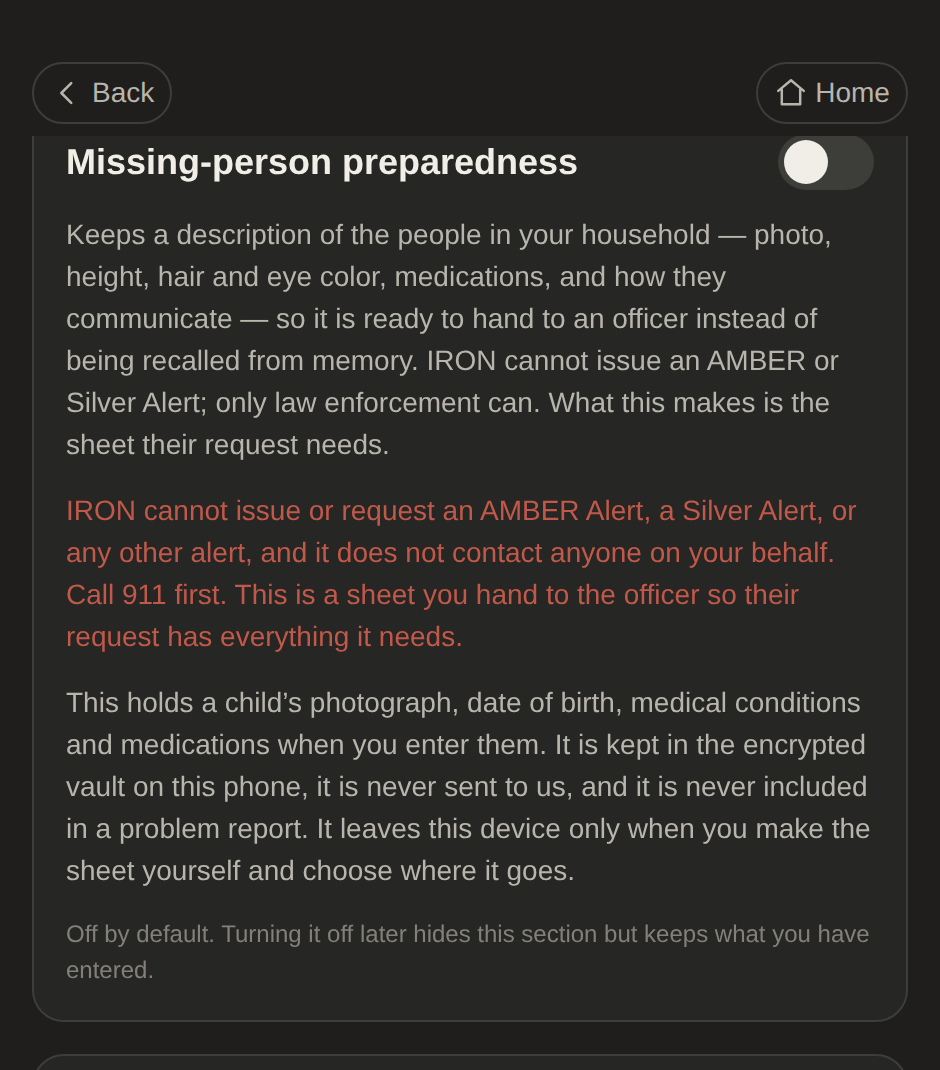
If you turn on missing-person preparedness, the descriptions you enter of the people in your household, which may include a photograph, a date of birth, sex, race, distinguishing marks and their own phone number. Only if you also turn on health details: their medications, medical conditions, whether they are at risk when alone, and how they communicate.
Your records are held in a SQLCipher-encrypted database on the device. The key is derived from your passphrase and kept in the platform keystore. Photographs and documents are kept as files beside it, each encrypted with a key derived from the same vault key. We do not have that key, we cannot derive it, and nothing is sent anywhere.
What we hold about you
Nothing. There is no account, no sign-in, and no server of ours that stores anything about you. We never learn your name, your email address or your phone number, and we do not store a date of birth.
Your inventory, your photographs, your serial numbers, your values, your address, your household, your insurance figures, your passphrase and your vault key are not with us either. It is not that we choose not to collect them; there is nowhere for them to go.
How your vault is protected
The vault is a SQLCipher database encrypted with a 256-bit key. That key is generated on your device and stored only as ciphertext, wrapped with a key derived from your passphrase using PBKDF2-HMAC-SHA512. The iteration count is chosen from what your own device can do in about a second, and recorded with the vault.
The wrapped key lives in the iOS Keychain or the Android Keystore, marked device-only. Your passphrase is never transmitted and never stored anywhere.
Photographs and documents are stored as files in the app’s private storage, each encrypted with AES-256-GCM under a key derived from your vault key, so deleting the vault key makes them unreadable along with the database. A photograph is opened in memory to be shown, and leaves the vault unencrypted only inside a document you choose to make. Inside a transfer file or a copy you keep, they are encrypted again with everything else.
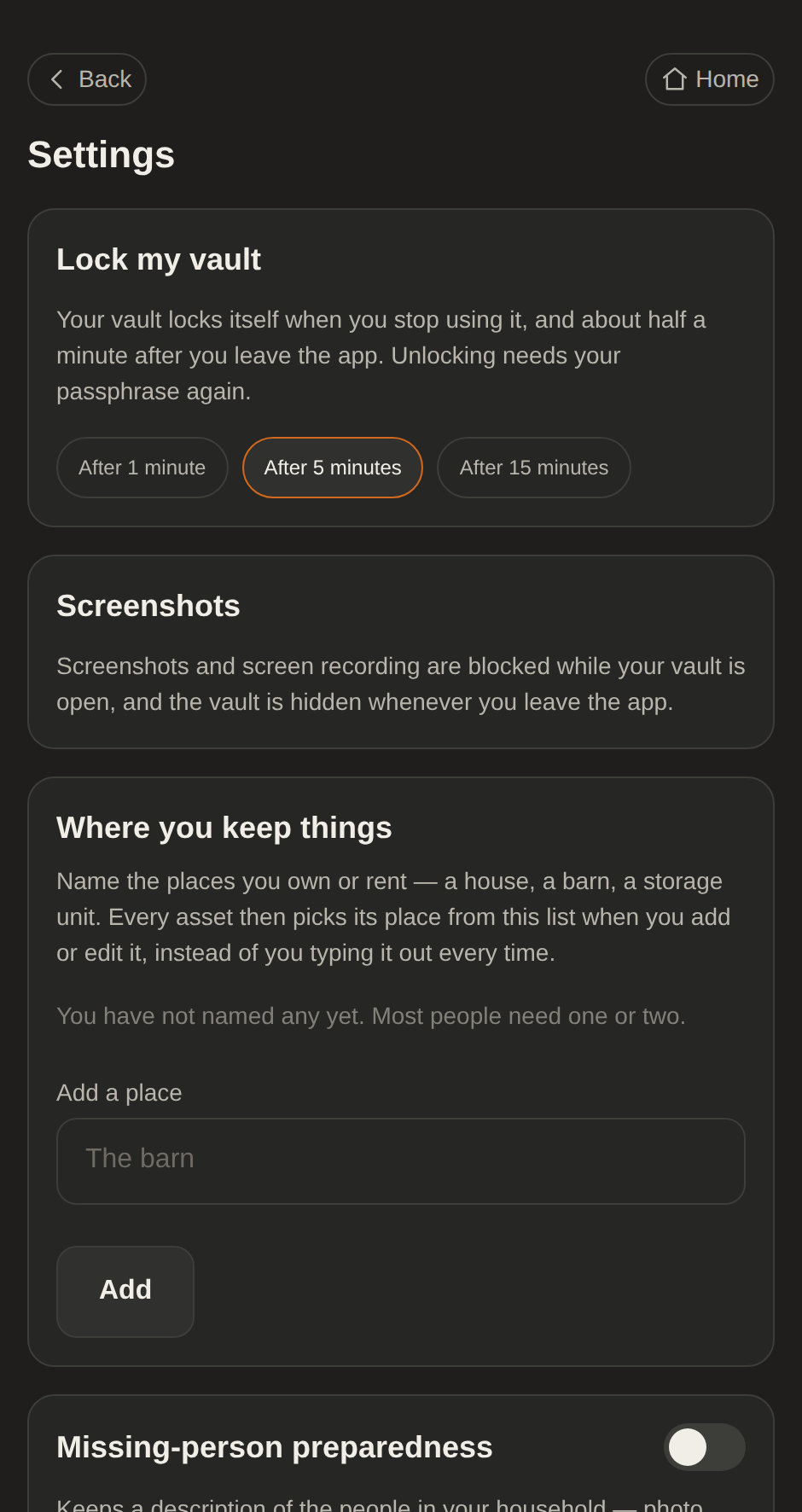
The app locks itself after a period of inactivity and shortly after you leave it, and covers its screen the moment you leave so the vault does not show in the app switcher. On Android it blocks screenshots and screen recording while the vault is open. iOS does not let any app block a screenshot, so on an iPhone taking one locks the vault immediately; the picture already taken is an ordinary photo outside the vault. If the phone’s operating system looks modified, the app locks the vault and tells you why before you carry on.
Photographs have their EXIF metadata stripped before they are written, so a picture of your living room does not carry the coordinates of your home.
No system is perfect, and none of this protects a file after you have exported it.
Backups, and moving to a new phone
The vault database, its journal files, your media and any staged export are excluded from iCloud backup and from Google Drive and Android Auto Backup, so they cannot be swept into a cloud backup we do not control.
On Android 12 and later there is one deliberate exception, and it is not a cloud one: if you move to a new phone using Android’s own device-to-device transfer, the vault directory goes with you. It travels directly between the two phones, still encrypted, and Google never receives it.
On iOS the vault is excluded from every backup and transfer channel, so moving it to a new iPhone is a step you take inside the app rather than something that happens on its own.
There is no recovery
If you forget your passphrase, the vault cannot be opened: not by you, not by us, and not by anybody else. We hold no escrow key and no copy of your data.
What you can do is start over. "Forgot your passphrase?" on the unlock screen destroys the vault, after you type DELETE to confirm, and sets up a new, empty one. A subscription is kept, because it belongs to your App Store or Google Play account.
The app can remind you to keep your own encrypted copy. That setting is in Settings and it is off until you turn it on, and the copy it helps you make is yours to look after.
When your data leaves the phone
Only when you make it leave: generating a document, making the encrypted file that moves a vault to a new phone, or keeping a copy of your own.
Every one of those shows a warning first that names what the file will contain: whether it carries serial numbers, whether it carries your address. The app never transmits an export anywhere on its own: it hands the file to the share sheet your operating system provides and does nothing else with it.
Once a file leaves the vault it is outside anything we control, and where it goes afterwards is your decision and your risk.
Reading a label with the camera
When you photograph a label or your insurance declarations page, the app can read the text on it to suggest a serial number or your policy figures. That runs on this device, using Google’s ML Kit text recognition, and neither the photograph nor the text it reads is uploaded.
ML Kit does send Google information about how it ran, such as its performance and errors and details of the device and app, with an identifier for this install, under Google’s own terms. The app says so on both screens before you scan. Typing the details in by hand does not use it.
Still being draftedthis description of what Google’s ML Kit sends, and the App Store and Google Play privacy answers that match it, need a lawyer’s approval before release.
A suggestion is a suggestion. The app never claims to have verified or confirmed anything about an item, and nothing it suggests is saved until you have read it and confirmed it.
Analytics, advertising and tracking
There is no analytics service, no advertising network, no third-party tracker and no crash-reporting service in the app. The one thing that reports on its own is ML Kit’s usage information, described under Reading a label with the camera, and only when you scan.
Problem reports
If you choose to send a problem report, it carries information about the app and the device, how many items your vault holds and a few on and off facts about it (such as whether it is locked), a trail of which screens you visited, and anything you type to describe the problem. It never carries the contents of your vault. You can read the whole report before it goes anywhere, and nothing is sent unless you send it.
A report is sent as an email from your own email app to our support address, so we receive your email address and what you chose to send. We use them only to look into the problem and reply to you.
An automated check in our build enforces that, and the household area reports under one name so that a report cannot disclose that somebody went missing.
Third parties
Apple and Google process your subscription and keep the record of it under their own privacy policies. The app asks the store on your phone whether it is current, and the answer goes from the store to the app and nowhere else. Neither of them receives vault contents.
Google’s ML Kit receives information about how text recognition ran when you scan, as described above. It never receives the photograph or the text.
If you turn on the additional categories, the app downloads a list of firearm makes and models so it can suggest them. The request asks for the list and carries nothing about you or your vault, though like any download it reaches the server with your network address.
That is the complete list. We sell nothing to anybody.
Age, and children
IRON Safeguard is for adults. Before you can use it, the app asks you to confirm that you are 18 or older and have reached the age of majority where you live, and it asks again if the terms change. That is a statement you make; the app keeps no date of birth.
The additional categories ask for 21 or older, the same everywhere. That is IRON Safeguard’s own rule for them, not a statement of what the law allows where you live, and the answer never leaves your device.
The missing-person feature is off until you turn it on. When a parent uses it, it may hold a child’s photograph, date of birth and description, and, only if health details are turned on as well, their medications, medical conditions, whether they are at risk when alone, and how they communicate. That information stays in your vault on the phone: we never receive it, it is never included in a problem report, and it leaves the device only in a sheet you generate and hand over yourself.
Deleting your data
Three things destroy the vault permanently. You delete it from Settings. You start over from "Forgot your passphrase?" on the unlock screen. Or you uninstall the app, which discards the keystore entry holding your wrapped key and takes the vault directory with it. Not paying is not one of them: if a subscription ends, the vault stays exactly as it is.
In every case the key material is destroyed first (both the keystore copy and the passphrase-wrapped copy in the vault directory), and then the files are overwritten and unlinked. There is no cloud copy to restore from, no support-side undo, and no retention period during which we could recover it.
The one thing that can outlive an uninstall is a transfer file you made yourself beforehand. That copy is wherever you put it, locked with your passphrase, and it is yours to keep or destroy.
There is no account to delete, because there is no account.
Deleting your vault does not cancel your subscription. Only the App Store or Google Play can do that, in your store account settings, and you should cancel there first.
Your rights
Depending on where you live, you may have rights to access, correct, export or delete personal information we hold about you, and to object to or restrict how we use it.
Everything you would ask for is already on your phone and not with us, and there is no account record here to access, correct or delete. If you write to the contact below, that is what we will tell you.
Still being draftedthe specific disclosures required for California (CCPA/CPRA), the EEA and the UK (GDPR), and any other jurisdiction this is sold into, including the legal basis for processing and the identity of any controller or representative.
Changes to this policy
If this policy or the terms change, the app shows the agreement again before you open your vault, rather than quietly updating a page. The effective date above is the one in force.
Contact
Still being draftedthe legal entity, postal address and contact email